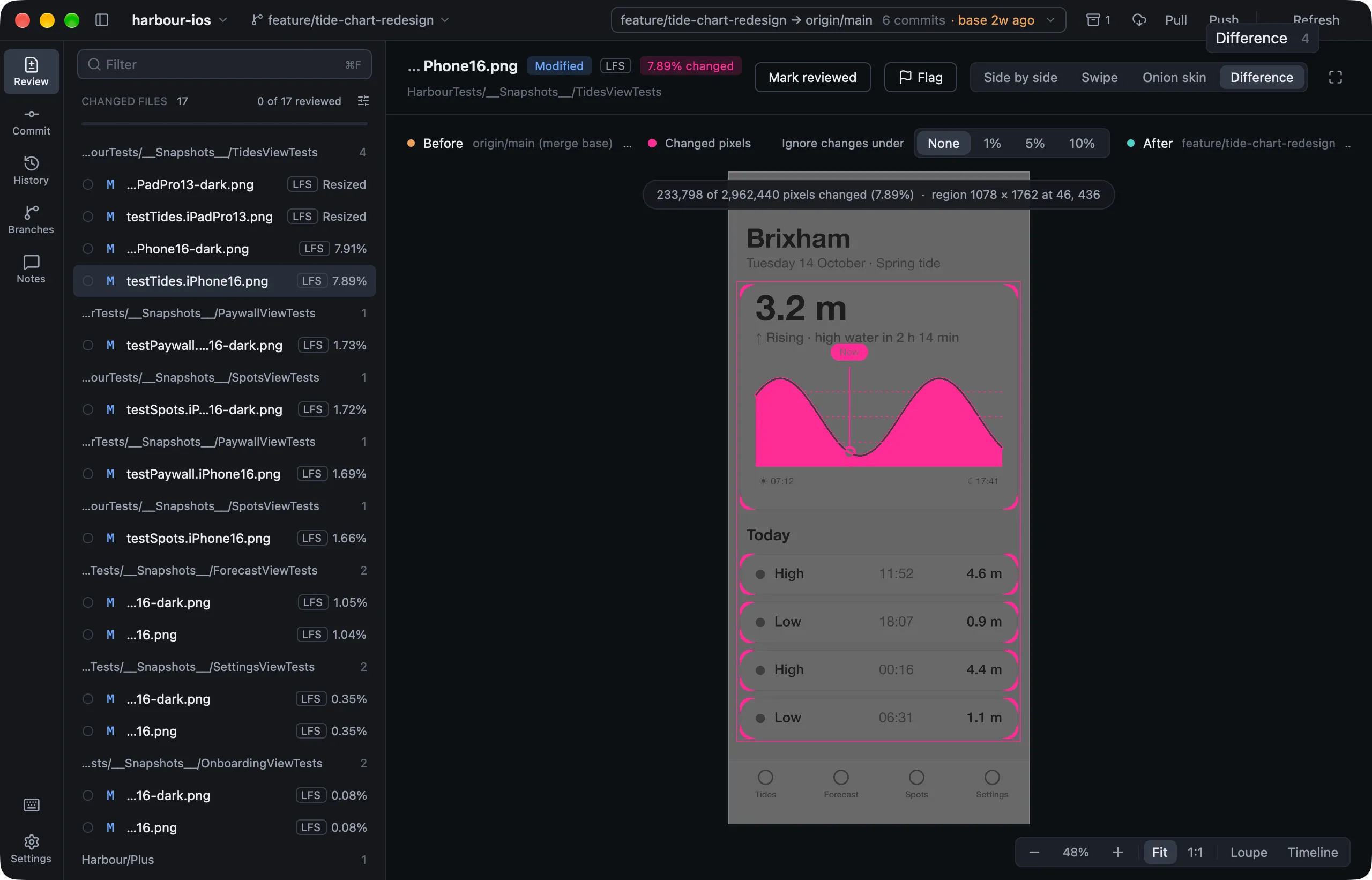
Select a changed image to compare it. The header shows its status, whether it’s in Git LFS, and how much changed. Identical pixels means the file was only re-encoded.
Four views
| View | Key | What it shows |
|---|---|---|
| Side by side | 1 |
Both versions at the same scale |
| Swipe | 2 |
A divider you drag between before and after |
| Onion skin | 3 |
The after image blended over the before |
| Difference | 4 |
Changed pixels lit up, with a count and the changed region outlined |
In Difference, Ignore changes under 1%, 5% or 10% hides colour noise, such as JPEG recompression.
Zoom and the loupe
| Key | What it does |
|---|---|
0 |
Switch between fit and actual size |
+ - |
Zoom in or out |
⌘-scroll |
Zoom around the pointer |
L |
Pixel loupe: each pixel’s position and before and after colours |
Every view shares the zoom and position, so switching views keeps your place.
Timeline
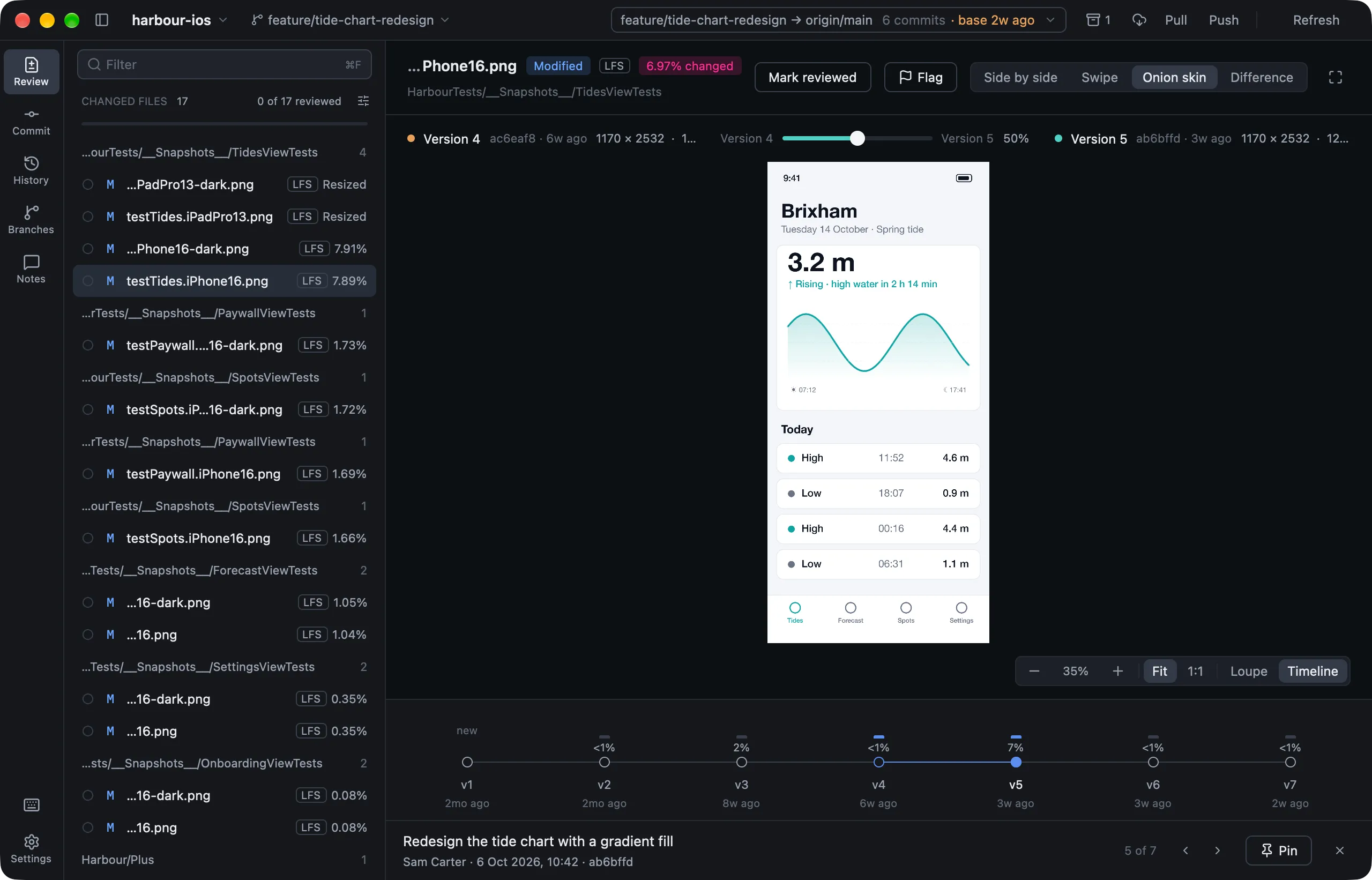
Press T to see every version of the image, followed back through renames.
- Each version’s bar shows how much it changed: new, same, or amber when the image was resized.
[and]step through versions. Hover over a dot to see its commit.- Pin (
P) holds one version, so you can compare every other version with it.
Triage
Lusca measures every image in the background.
Ssorts by Most changed: resized images first, identical ones last.- The filter button hides changes below a threshold: any pixel, a preset, or a percentage of your own.
Hshows them again, dimmed. - Images over 256 MB or 64 megapixels are marked Too large and aren’t opened.
- An LFS image you don’t have yet shows Fetch from remote. Fetching never touches your checkout.