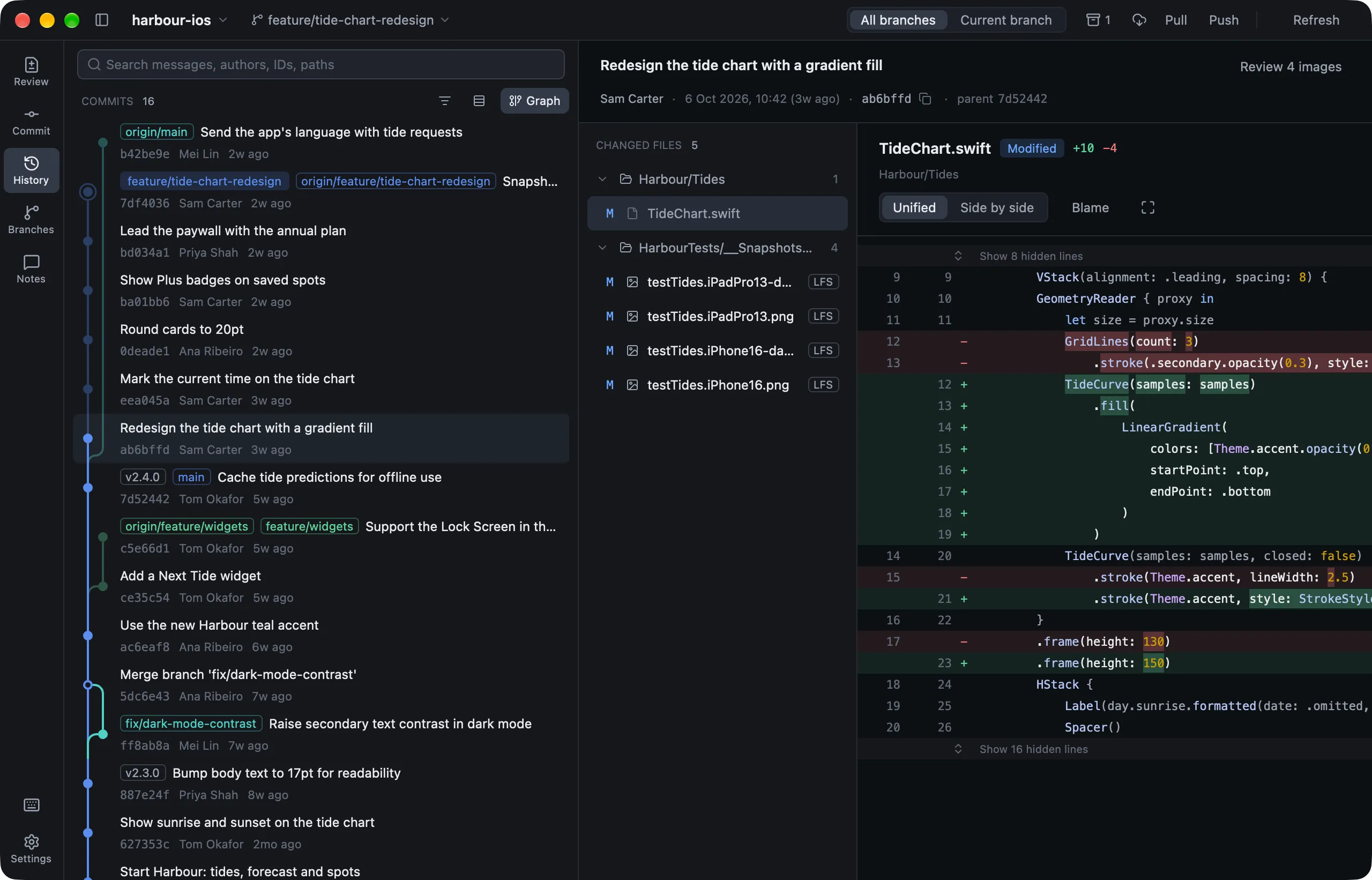
History (⌘3) shows the commit graph. Choose All branches or Current branch in the toolbar, and click Graph to hide the lanes.
Finding commits
⌘Fsearches messages, authors, emails and commit IDs. Text with a/or.in it matches file paths too.- To see one file’s commits, right-click it in any list and choose Show File History. It follows renames.
Reading a commit
- Select a commit to see its files. Images get the comparison views, and code gets a diff with the changed words highlighted.
Uswitches between unified and side-by-side diffs.- Blame shows the commit that last changed each line.
Return, or Review images, opens the commit on the Review page.
Things you can do with a commit
Right-click a commit to:
- copy its ID or message
- Save as Patch…
- start a branch or tag there
- check it out (
HEADis then detached) - Cherry-pick it onto your branch
- Revert it, with a new commit that undoes it
- Reset your branch to it, keeping the changes in your working tree
Anything that doesn’t apply is greyed out. A cherry-pick or revert that would conflict is backed out, and Lusca tells you so.